
You may be buying a used laptop and want to check the condition of its battery. How much capacity does it have left? How many charge cycles has it completed? And how long can it last on a full charge?
Fortunately, Windows 10 and 11 have a built-in tool that lets you check your laptop's battery health, capacity, and cycle count (if available).
You can generate a detailed battery report in less than two minutes, without installing any software.
What you need
A Windows 10 or 11 laptop and access to Command Prompt. If you’re checking a seller’s laptop, ask them to open Command Prompt as administrator, then these steps.
Steps
1. Open Command Prompt
Click Start or search for Command Prompt or cmd. Select and right click on Command Prompt and Run as administrator. A pop up will appear, approve the Windows prompt.
2. Generate the report
Run the following command in Command Prompt.
powercfg /batteryreport
Type the above command and hit enter.
Windows saves battery-report.html in the current folder and prints the full path.

To save to the Desktop instead, use the following command. If your Desktop is redirected to OneDrive or another location, use its actual path.
powercfg /batteryreport /output "%USERPROFILE%\Desktop\battery-report.html"
3. Open the report
In File Explorer, go to the path Windows printed and double-click battery-report.html. If you saved the report in Command Prompt’s current folder, you can also open it in your browser with this command.
start battery-report.html
4. Find “Installed batteries”
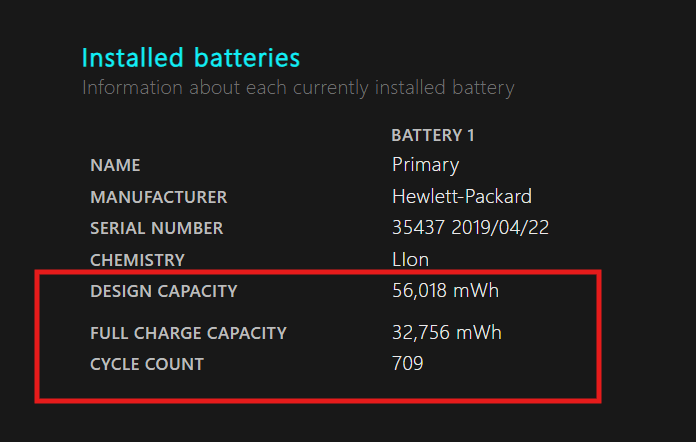
Scroll to the Installed batteries table. Note Design capacity (what the battery was rated to hold when new) and Full charge capacity (what it can hold now). Both are in mWh. Also note Cycle count if it’s listed.
5. Calculate battery health
Divide full charge capacity by design capacity and multiply by 100.
In the example, 32,756 ÷ 56,018 × 100 = 58.5%.
You can also use the calculator below.
Battery Health Calculator
Enter the Design Capacity and Full Charge Capacity from your Windows battery report to calculate your laptop's current battery health percentage.
Enter the two capacity values to see the result.
What the percentage means
| Health | Meaning |
|---|---|
| 85% or more | Excellent. Battery is close to new. |
| 70% to under 85% | Good. Normal wear for a used laptop. |
| 50% to under 70% | Worn. Expect short runtime. Negotiate the price or budget for a replacement. |
| Below 50% | Weak. Plan to replace it. |
Use these bands as a practical rule of thumb. Manufacturers set their own battery health criteria.
Check these too
- Battery capacity history. A steady drop is normal. If capacity drops sharply, run the laptop maker’s battery diagnostic and check how long the laptop lasts unplugged.
- Battery life estimates. Compare “at full charge” with “at design capacity” to see how Windows estimates the effect of battery wear on runtime.
- Cycle count. Some models leave this blank. If the count is high, check full charge capacity and runtime before deciding whether the battery needs replacing.
When the numbers look wrong
- Full charge above design capacity. Treat the result as roughly 100%. If it’s well above design capacity, confirm the battery model and check it with the manufacturer’s diagnostic tool.
- Design capacity far from the model’s spec. The laptop may have shipped with more than one battery option or have a replacement battery. Compare the installed battery with the specifications for the exact model and battery option.
- Empty usage history. There may be too little recorded usage for Windows to estimate runtime. Check the two capacity values and test the laptop unplugged if you can.
Buying a used laptop?
Run the command on the seller’s laptop before paying. A worn battery is a fair reason to ask for a lower price. Ask what a replacement costs for that exact model. See the used laptop buying guide for the other checks to run before you pay.