Whether you're inspecting a laptop you're about to buy or wondering why your current one feels slow, it's worth checking the SSD's health. You'll get a better idea of the drive's condition and whether it has recorded any errors.
You can start with the tools already built into Windows. Below, you'll find four ways to check your SSD, along with explanations of the results and what to try if Windows leaves some details blank.
What you need
- A Windows 10 or 11 laptop.
- An administrator account. If you are testing a seller's laptop, ask them to sign in.
- Windows PowerShell, opened directly or in Windows Terminal.
Method 1. Check the drive in Windows Settings
This is the fastest check for a supported NVMe SSD. On Windows 11, follow these steps.
- Open Settings > System > Storage > Advanced storage settings > Disks & volumes.
- Select your physical drive and click Properties.
- Look for the Drive health section. It can show estimated remaining life, available spare, and temperature.

Windows provides this monitoring for NVMe drives. SATA SSDs and hard drives need another method. Controller and driver support also affect which details appear. Some Windows 10 builds have a Manage disks and volumes page, so check your installed version. Microsoft’s storage health guidance and Windows 10 feature announcement.
If the health section is missing, use Method 2.
Method 2. Check health status with PowerShell
- Press
Win+Xand choose Terminal (Admin) or Windows PowerShell (Admin). In Terminal, open a Windows PowerShell tab. - Run this command.
Get-PhysicalDisk |
  Select-Object DeviceId, FriendlyName, MediaType, BusType, HealthStatus, OperationalStatus,
    @{n='SizeGB';e={[math]::Round($_.Size/1GB)}} |
  Format-List

This shows the drive model and the status reported to Windows. DeviceId helps you match a drive with the counters in Method 3.
What to look for
- MediaType should say
SSD.HDDidentifies a hard drive. If Windows reportsUnspecified, look up the exact model shown inFriendlyName. - BusType identifies the connection, such as
NVMeorSATA. NVMe generally supports higher transfer speeds, while either can suit everyday work. - HealthStatus should normally say
Healthy, with OperationalStatus showingOK. InvestigateWarningorUnhealthybefore buying. - SizeGB should be consistent with the seller's claim. A marketed 256GB drive is about 238GiB and a 512GB drive about 477GiB. The command uses binary units even though its custom label says
SizeGB.
Drive identity and capacity come from the storage provider. Use the model number and the other checks to assess the actual unit. Microsoft’s Get-PhysicalDisk reference.
Method 3. Check wear and error counters
In the same administrator PowerShell window, run this command.
Get-PhysicalDisk |
  Get-StorageReliabilityCounter |
  Select-Object DeviceId, Wear, Temperature, PowerOnHours,
    ReadErrorsTotal, WriteErrorsTotal, ReadErrorsUncorrected, WriteErrorsUncorrected |
  Format-List
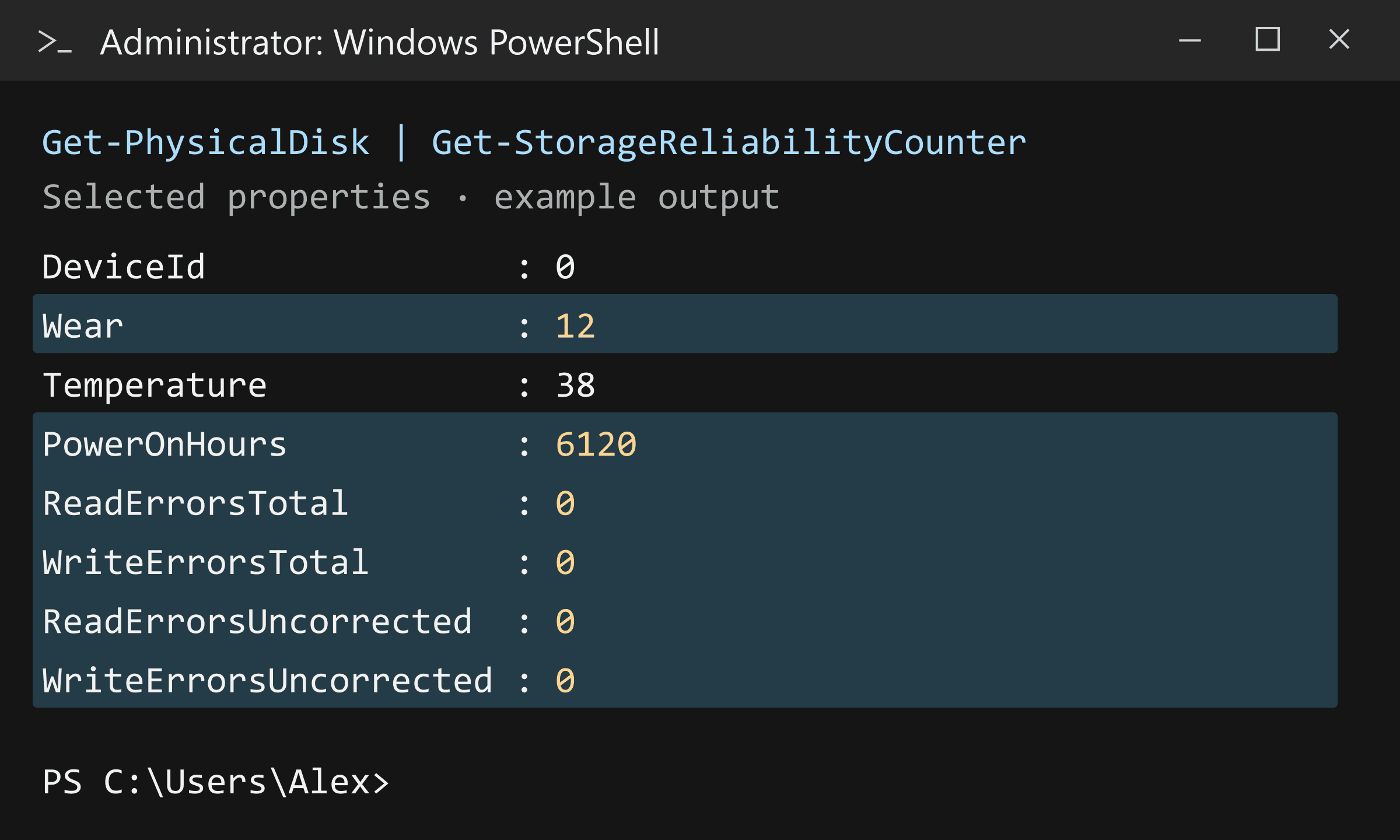
How to read the result
| Field | What it means | What to check |
|---|---|---|
| Wear | Percentage of the estimated wear limit consumed. | Lower values indicate less reported wear. |
| PowerOnHours | Hours the installed drive has been powered on. | Compare with the seller’s account of its use. The drive may be newer than the laptop. |
| ReadErrorsTotal / WriteErrorsTotal | Reported errors, including errors the drive may have corrected. | Review alongside the uncorrected counters and diagnostics. |
| ReadErrorsUncorrected / WriteErrorsUncorrected | Errors the drive could not correct. | Investigate nonzero or increasing values. |
| Temperature | Reported temperature in degrees Celsius. | Compare with the drive maker’s operating range and the current workload. |
Wear shows how much of your SSD's estimated working life has been used as you save and change files. For example, a value of 12 means about 12% has been used. Lower numbers mean less wear, and 100% means the drive has reached its estimated limit. Microsoft’s counter definitions.
A rough buying guide for Wear follows.
| Wear | Meaning |
|---|---|
| 0 to 20 | Lower reported wear. Continue the other checks. |
| 21 to 50 | More of the endurance estimate has been used. Review errors and diagnostics. |
| 51 to 80 | Substantial wear. Consider a replacement when comparing prices. |
| Above 80 | A high share of rated endurance has been used. Budget for a replacement. |
These bands are a practical buying rule of thumb. Manufacturers set the endurance ratings for their own drives.
If fields are blank, Windows may be unable to obtain those counters through the drive, controller, or driver. A blank field gives you no measurement. Try Method 4 for another assessment. Microsoft’s Get-StorageReliabilityCounter reference.
Method 4. Use the laptop's built-in hardware diagnostics
Many business laptops from HP, Dell, and Lenovo include diagnostics that run before Windows starts.
- HP EliteBook models commonly use
Esc, thenF2, or repeatedF2at startup. Open the storage test in HP PC Hardware Diagnostics UEFI. HP’s hardware testing guide. - Dell Latitude models commonly use
F12at the Dell logo, then Diagnostics. Run the drive test. Dell’s NVMe and pre-boot diagnostics guide. - Lenovo ThinkPad models commonly use
F10at startup to open Lenovo Diagnostics, where you can choose a storage test. Lenovo’s UEFI diagnostics guide.
The key and available tests vary by model. Check the startup screen or the exact model’s support page. If diagnostics are already installed, you can run them without adding software to Windows.
Check for disk errors in the event log
Windows records some storage problems in its System log. Run this command.
Get-WinEvent -FilterHashtable @{LogName='System'; ProviderName='disk'} -MaxEvents 20 |
  Select-Object TimeCreated, Id, Message |
  Format-List
- If no matching events are found, Windows has no entries for this particular query in the available log history. Logs can be cleared or rotated, and other providers can record storage problems too.
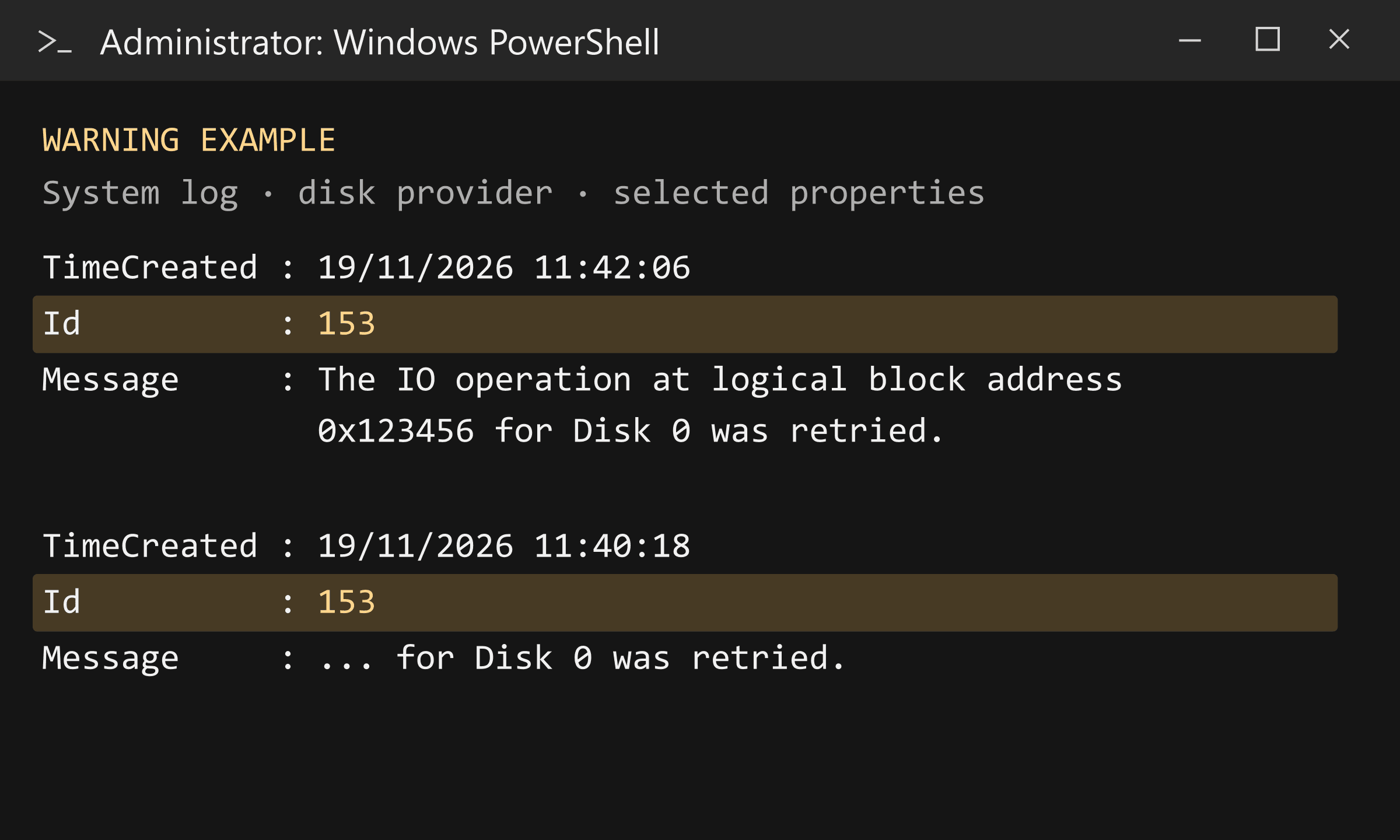
- Event IDs 7, 11, 51, and 153 can identify bad blocks, controller problems, I/O errors, or retried operations. Repeated recent entries need investigation.
- Check the affected disk and the surrounding events. Drivers, controllers, connections, and workload can contribute to storage errors.
Microsoft describes event 153 as a timed-out storage request that was retried. Investigate the storage path and the drive together. Microsoft’s disk error troubleshooting guidance.
Check the file system
To check the C: file system, run this command in the administrator window.
chkdsk C:
With no repair options, this reports file system status. A result saying Windows found no problems is reassuring for the file system. An active volume can produce inconsistent results while files are changing. Microsoft’s CHKDSK reference.
Use the wear counters and hardware diagnostics to assess the SSD’s physical condition.
Quick speed sanity check
With the seller’s permission, copy a large file, such as a 2 to 5GB video, between folders on the drive and watch for stalls. The time depends on the SSD, its cache, free space, encryption, and other work running on the laptop.
Treat this as a quick usability check. If transfers repeatedly stall or files become unreadable, run the storage diagnostic and investigate before paying.
Extra checks when buying a used laptop in Pakistan
- Drive type and identity. Use Method 2 to check the reported type and model, then compare them with the seller’s description.
- Swapped drives. A replacement drive can be fine. Check its condition, model, and warranty separately from the laptop.
- Capacity claims. Opening copied files is a basic check of the data you wrote. A small copy cannot validate the drive’s entire advertised capacity. Ask the seller for a full capacity verification if the claim looks suspicious.
- Ask for details in writing. Note the drive model and size on your receipt, along with the battery condition and warranty terms.
For the battery, use our Windows laptop battery health guide. For the rest of the inspection, follow the used laptop buying guide for Pakistan.
Frequently asked questions
Can I check SSD health without installing software?
What is a good SSD wear percentage?
Why are some values blank?
Does “Healthy” mean the SSD is safe?
How do I know if my laptop has an SSD or an HDD?
Unspecified, look up the model shown in FriendlyName.Is the NVMe health page available on Windows 10?
The PowerShell checks help identify the reported drive type, capacity, wear, and recorded errors. Run them before paying for a used laptop, compare them with a hardware diagnostic, and keep a note of the results.
Browse laptops by price range, or use the Laptop Finder to build a shortlist. Confirm the installed drive and its condition with the seller for the unit you choose.